Setting up formulas in vPlan
A formula might sound complex and mathematical, but fortunately, our formulas aren't like that. They work similarly to what you might be familiar with from Excel. Some formulas work immediately, while others need to meet certain conditions. Or rather, your card needs to meet certain conditions. The conditions vary depending on the formula. We're going to tell you all about it!
Build your own formula
First, we'll explain how to use a formula in the most basic way. One method is to build a formula yourself. To do this, go to the columns in the list view and click on 'Add Formula'. On the left side of the window, you can build your own formula.
Use our standard formulas
The other method is to copy and paste a formula. Click on 'Columns' again and then on 'Add Formula'. In the 'Formula' field, paste the formula you would like to use. For example, take advantage of the most popular formulas within vPlan at the moment!
Most Used Formulas in vPlan
- Quarter in Which a Date Falls
Would you like to see at a glance which quarter a date falls into? You can do that with the following formula:
CONCATENATE("Q",ROUNDUP(MONTH(field("CardEndDate"))/3,0))
This formula is commonly used in long-term planning. The advantage of this is that you can forecast deliveries effectively. To make the formula work, you need to fill in a planned date on your card. Let's walk through it:
Once you've added a formula, you can always find it in the list of available columns.
2. Progress percentage based on time tracking
With this formula, you can immediately see the progress percentage of a project or order in the list view. Simply copy and paste this formula:
CONCATENATE(ROUND((field("CardTimeTracked") / field("CardTime") * 100),1), "%")
To make this formula work, two conditions apply: you must use activities to make a time estimate, and you must track time in vPlan. If you fill in both fields, you will see a progress percentage.
3. Textual result based on conditions
Suppose you want to quickly see the quality score of your products or services, so you can immediately identify what is good and what needs improvement. Companies that produce samples or oil companies often use this. With this formula, you assign a score to your products, such as 'Excellent', 'Good', 'Fair', or 'Poor'. You can fill in these values yourself. Use the following formula:
IF(field("QualityScore")>80, "Excellent",
IF(field("QualityScore")>50, "Good",
IF(field("QualityScore")>30,"Fair", "Poor")))
Instead of words, you can also use emoticons to make your planning even more visual. You can easily sort this column to see the best-performing products or services and the worst.
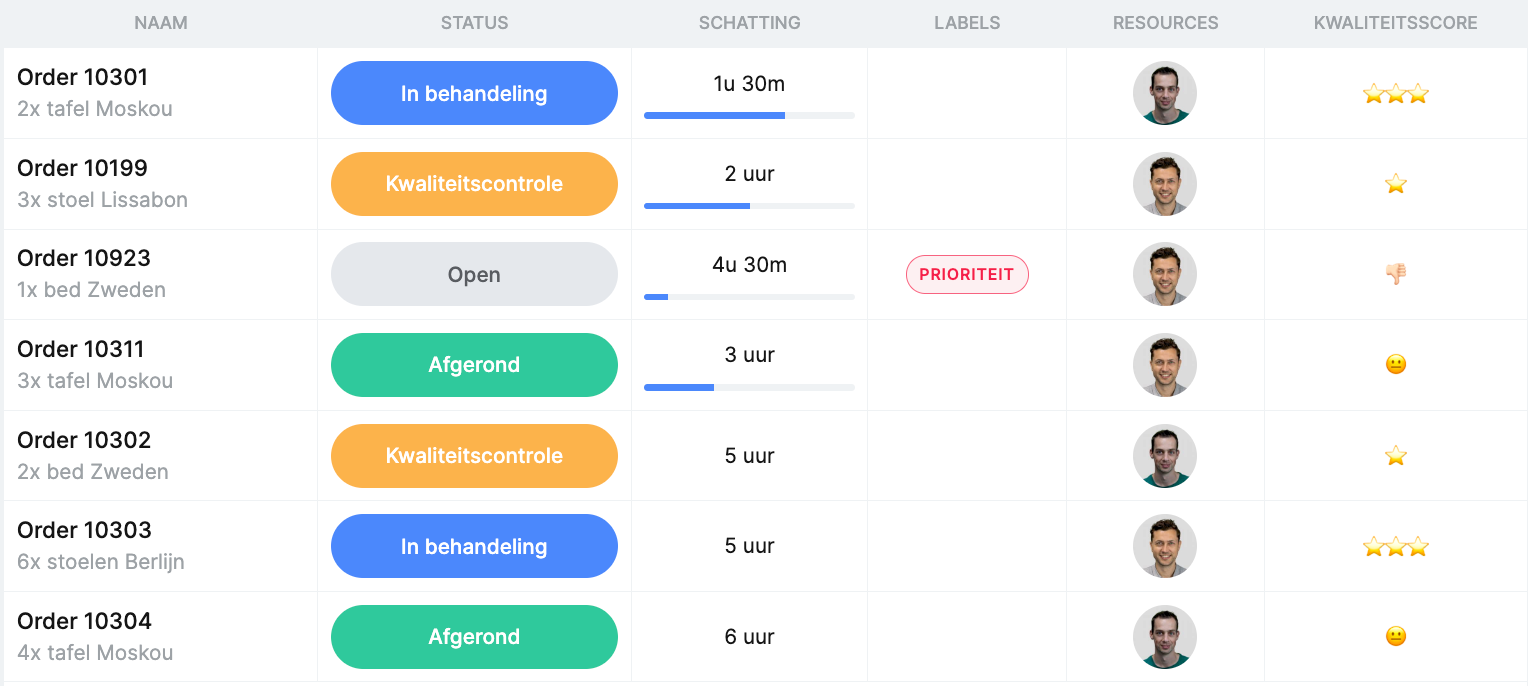
For this, you need to set up a custom field in your cards, namely 'QualityScore'. You can do this by going to the configuration of your board. Click on 'Boards' in the left menu and then select the board where you want to add a custom field. Under the 'Configuration' tab, you'll see 'Custom Fields' on the right side. Click on 'Add Field', select 'Number' from the dropdown menu, and name the field 'QualityScore'. Now you can use the formula!
Patrick's Favorite Formula!
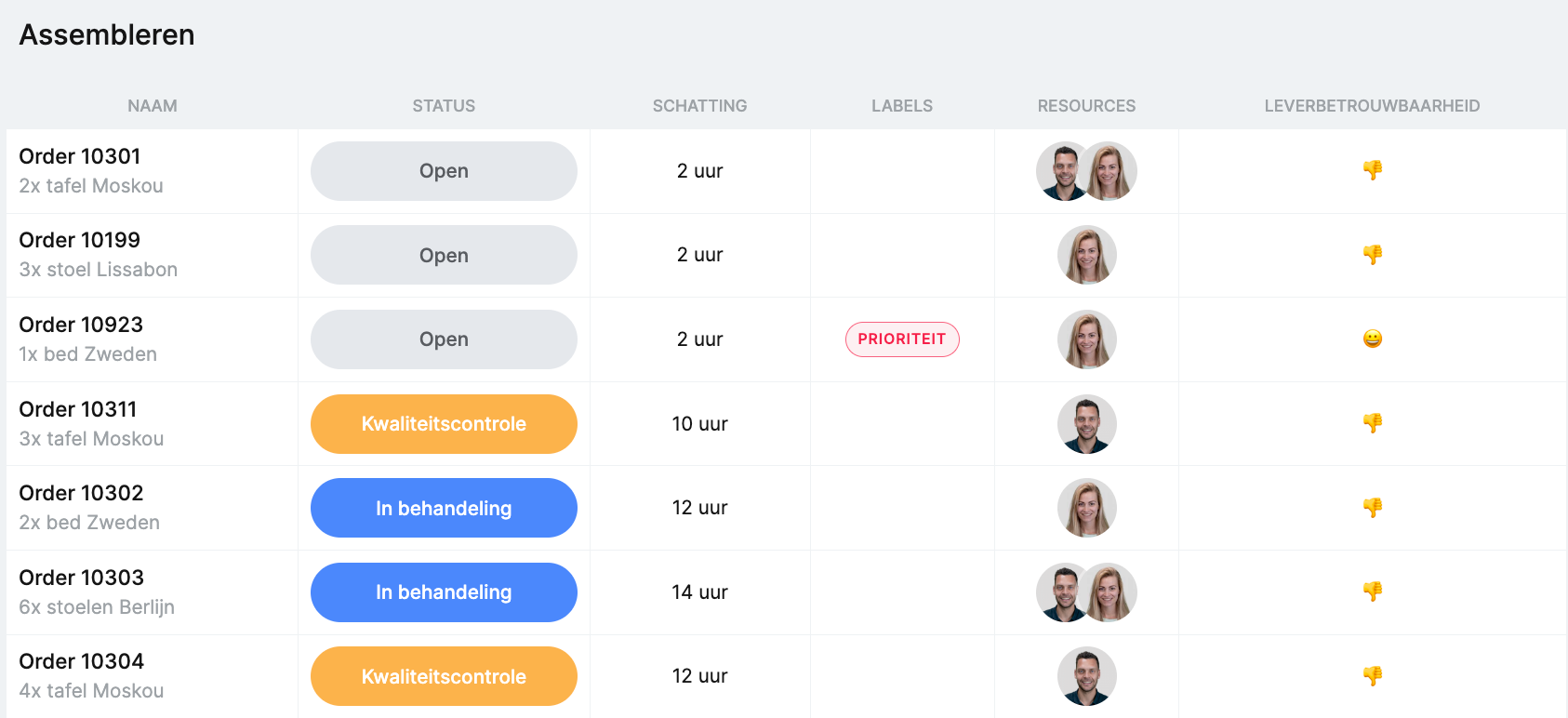
We've already shown you some handy smart formulas, but our consultant Patrick has a bonus formula for you. With his formula, you can increase delivery reliability, an important insight for many companies. Here's the formula:
IF(DAYS(field("CollectionEnd"),field("CollectionDueDate"))<1,"?","?")
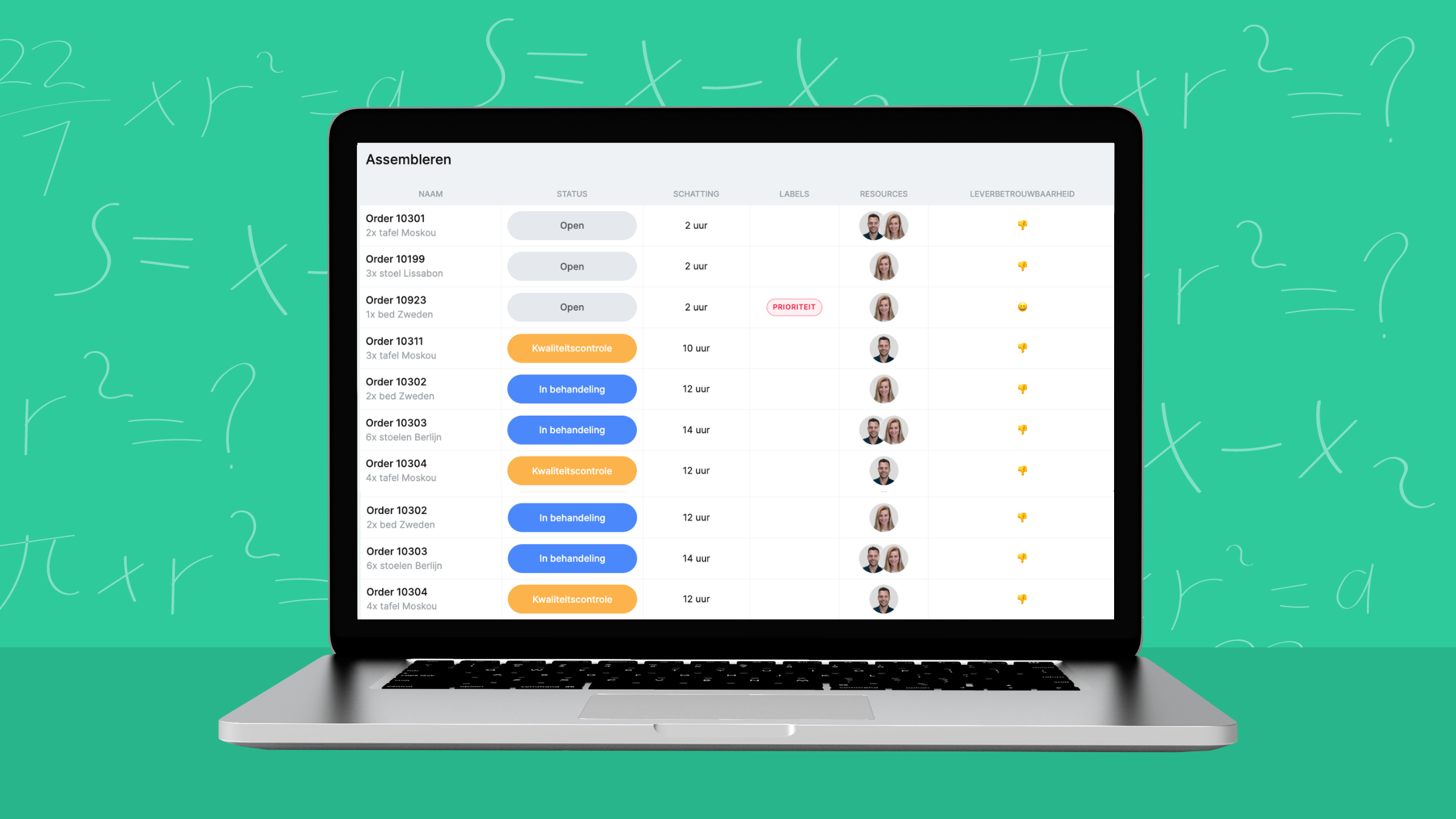
Thanks to this formula, you can immediately see whether you're going to meet an order or not. You need to fill in an expiry date on the card and use the planned date for this. If you're not going to meet the order, you'll see a thumbs down (or whatever you choose to enter), and then you need to step up internally. Of course, you can also adjust the expiry date to get a happy smiley again, but you need to communicate and discuss this with your customer.
Why is this Patrick's favorite formula?
"You're busy every day planning, shifting orders around, and moving things. Sometimes you want to zoom out and see if you've done it right. With this formula, you get a very nice overview," says Patrick.
Excited about formulas? We'll show you a few more very useful ones soon!

Work at vPlan
We are looking for new colleagues.